
The Akshara app
The school in every parent’s pocket — and every teacher’s
One app for parents and teachers on Android phones, in each school’s own name, crest and colours. It shows exactly what the office sees, the moment it changes.
For parents
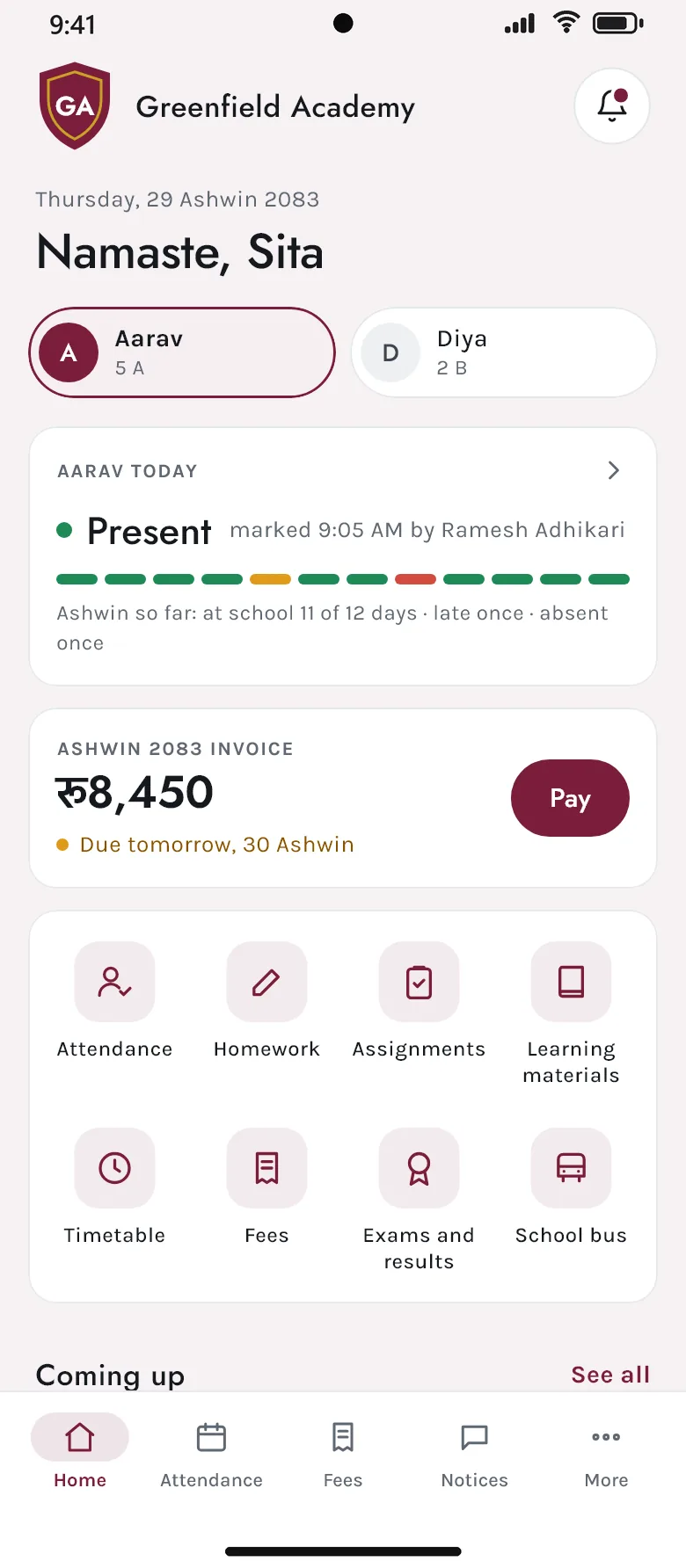
Everything about each child, without phoning the office
Parents with more than one child at the school switch between them with a tap; each sees only their own children.
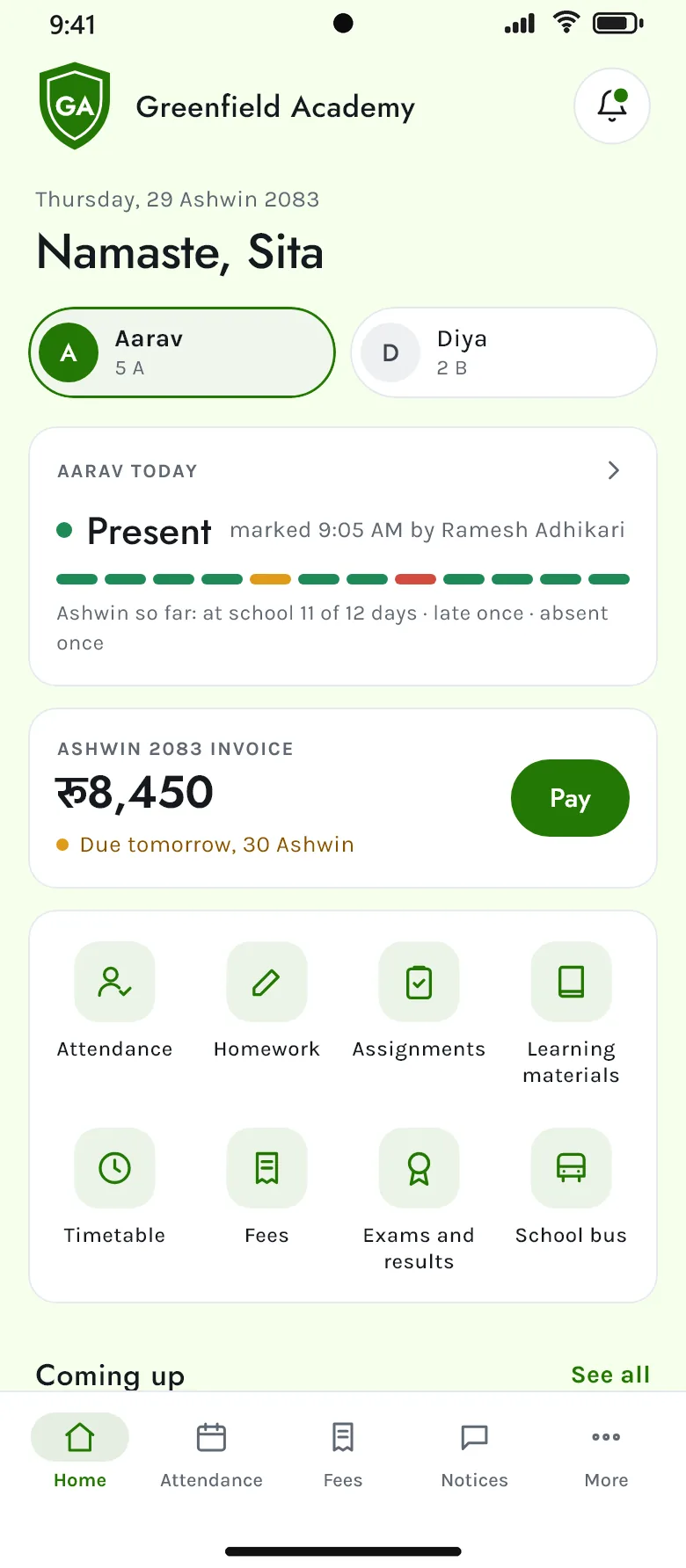
Each child’s day
Present or absent, what is due and what is coming up — one child at a time, switched with a tap.
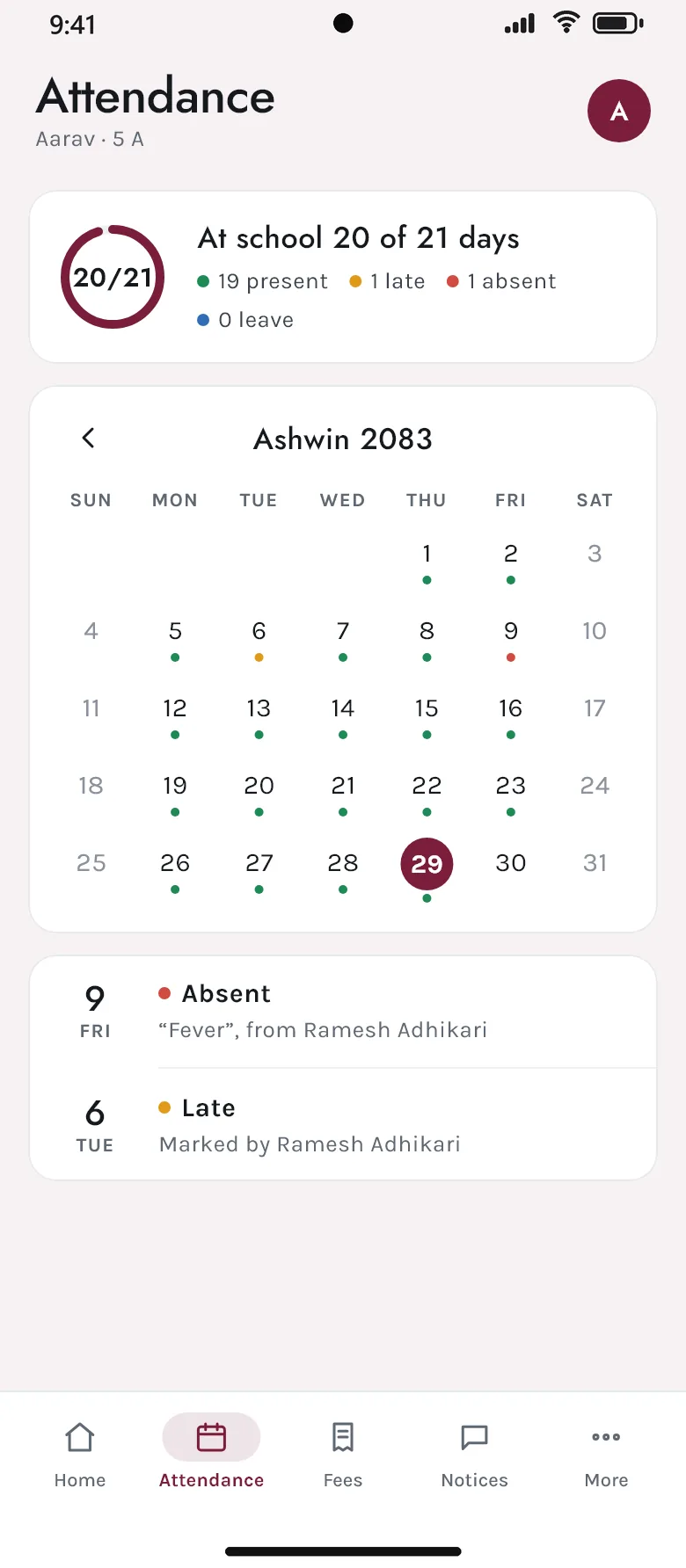
Attendance
The month at a glance, with late days, leave and the teacher’s note on an absence.
Homework and assignments
What to do, the files that go with it, and when it is due.
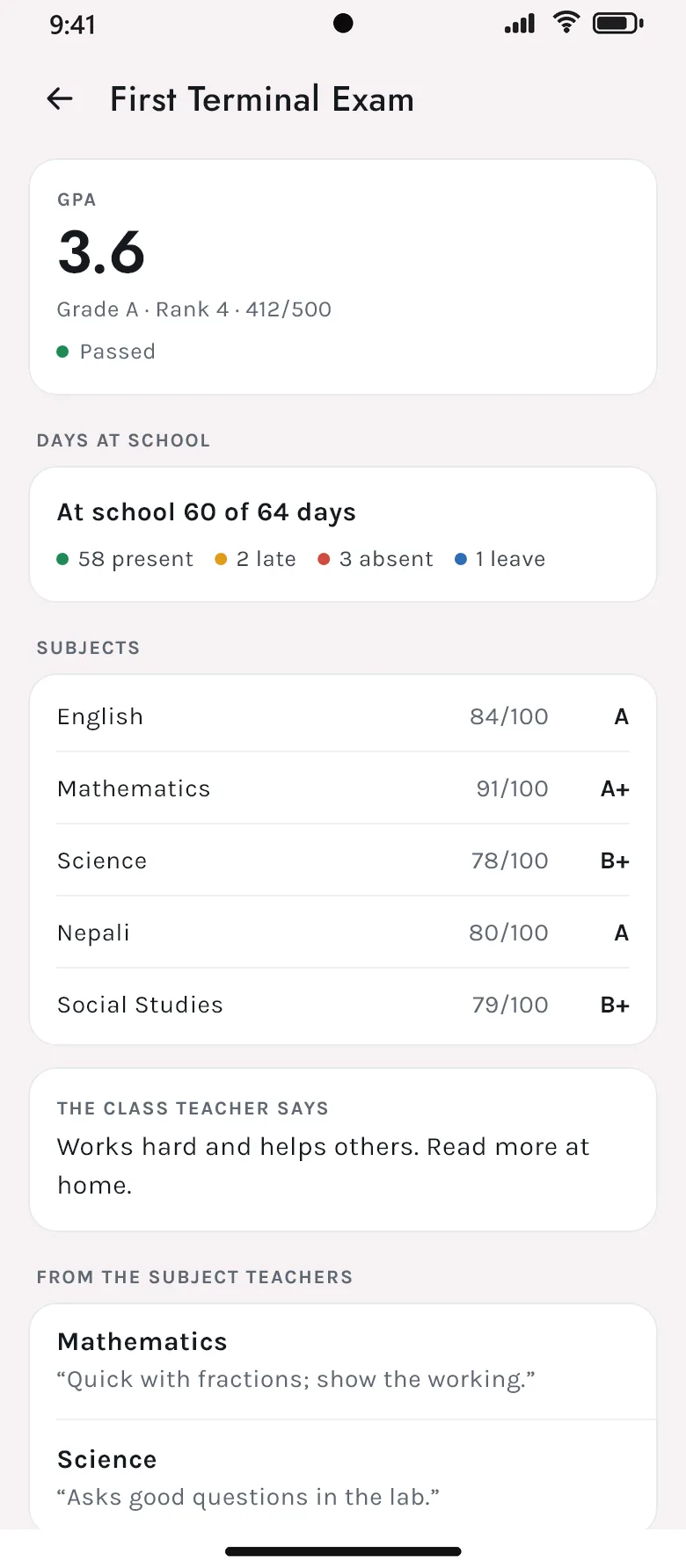
Exams and results
Class test results, report cards with GPA and rank, and the teachers’ remarks.
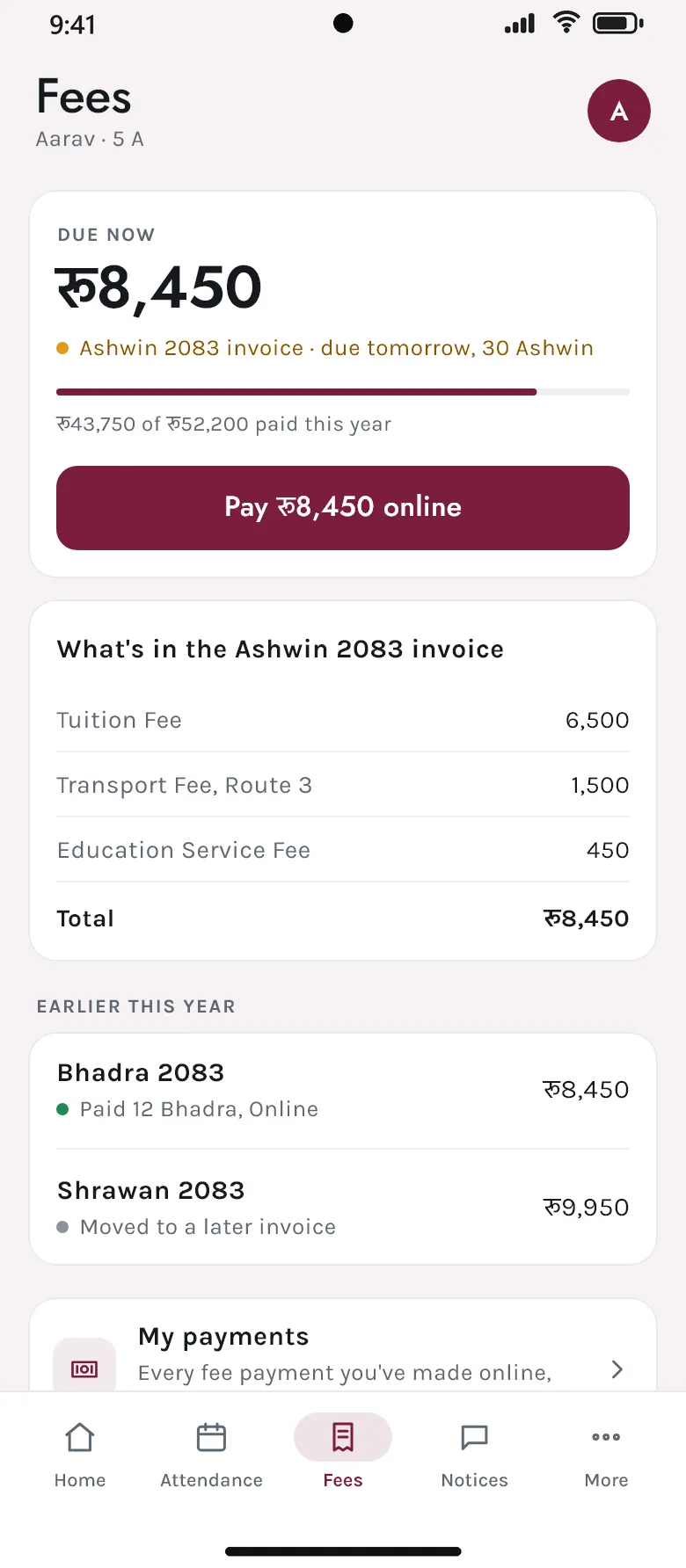
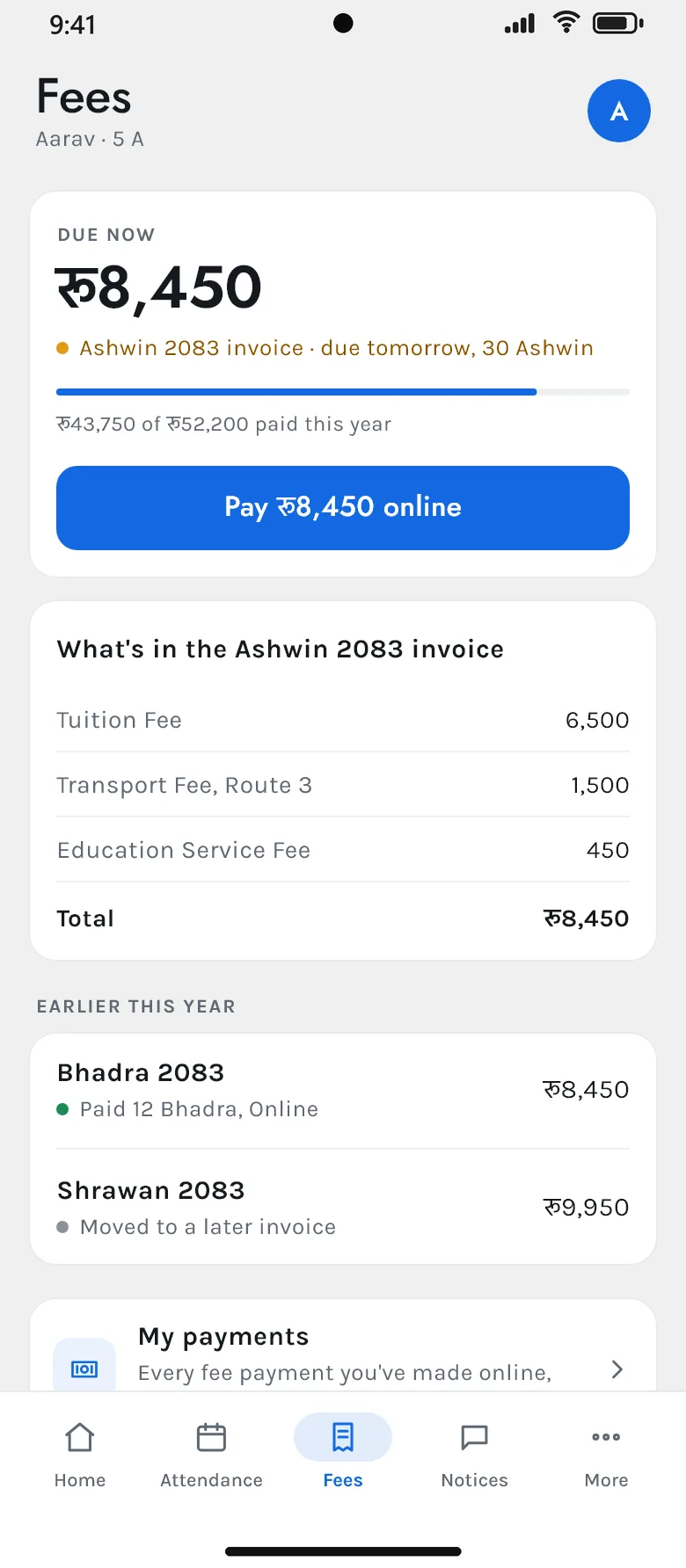
Fees and payments
What is due and what it is made of, paid online, with every receipt kept.
The school bus
The bus on its way and its next stops, live — and when it reaches theirs.
Notices and the bell
Notices with their files, and a push to the phone when something new arrives.
Merit cards and activities
Cards given and why, house points, clubs and achievements.
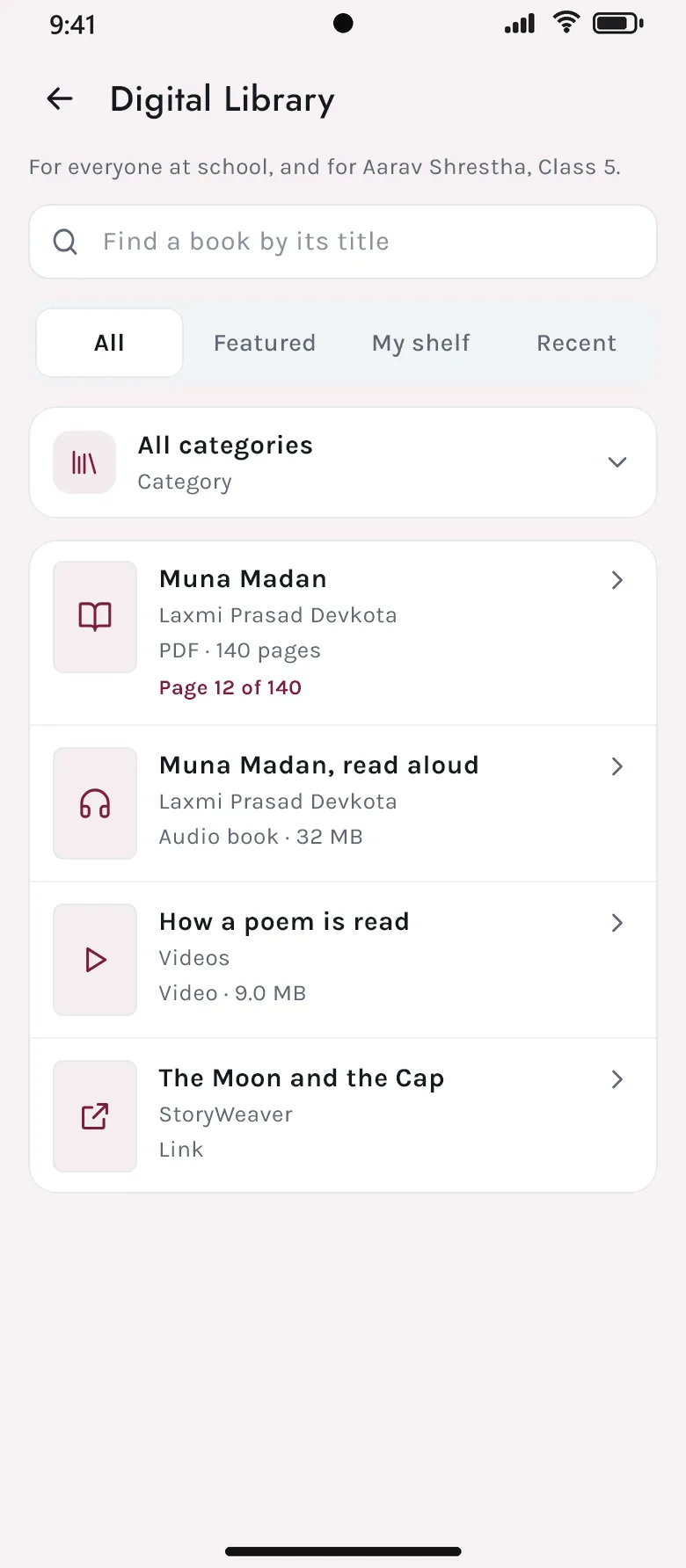
The digital library
E-books, audio books and videos to read, hear and watch — carrying on where they stopped.
A word with the teacher
Conversations with the child’s teachers and the school’s desks, files and all.
Gate passes
A gate pass asked for when a child must leave early.
Montessori journey
For Montessori classes: each activity introduced, practised and mastered.
For teachers
A teacher’s day, run from the phone
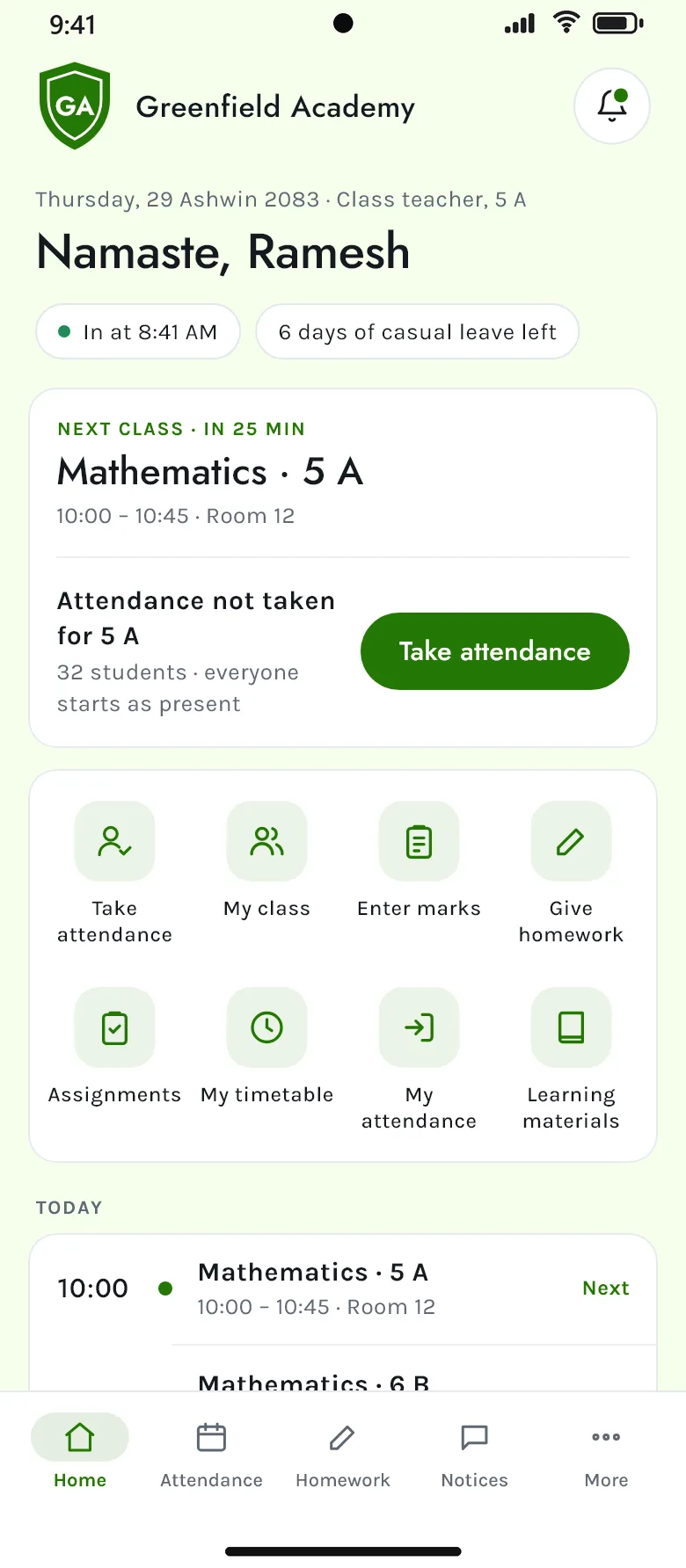
Teachers see the classes they teach and the sections they lead — and nothing they don’t need.
The day ahead
The next class, attendance still to take, their own punch-in time and leave left.
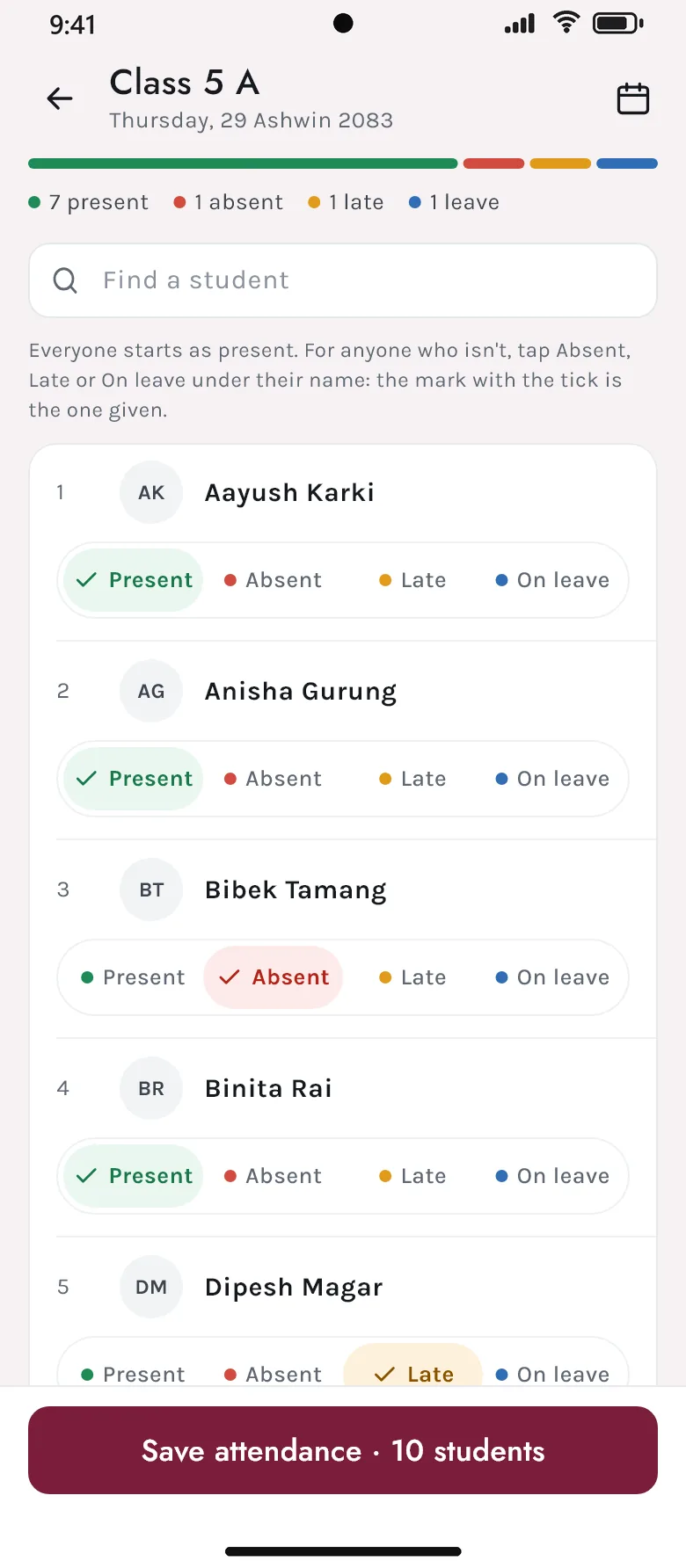
Roll call
Everyone starts present; a tap marks absent, late or on leave.
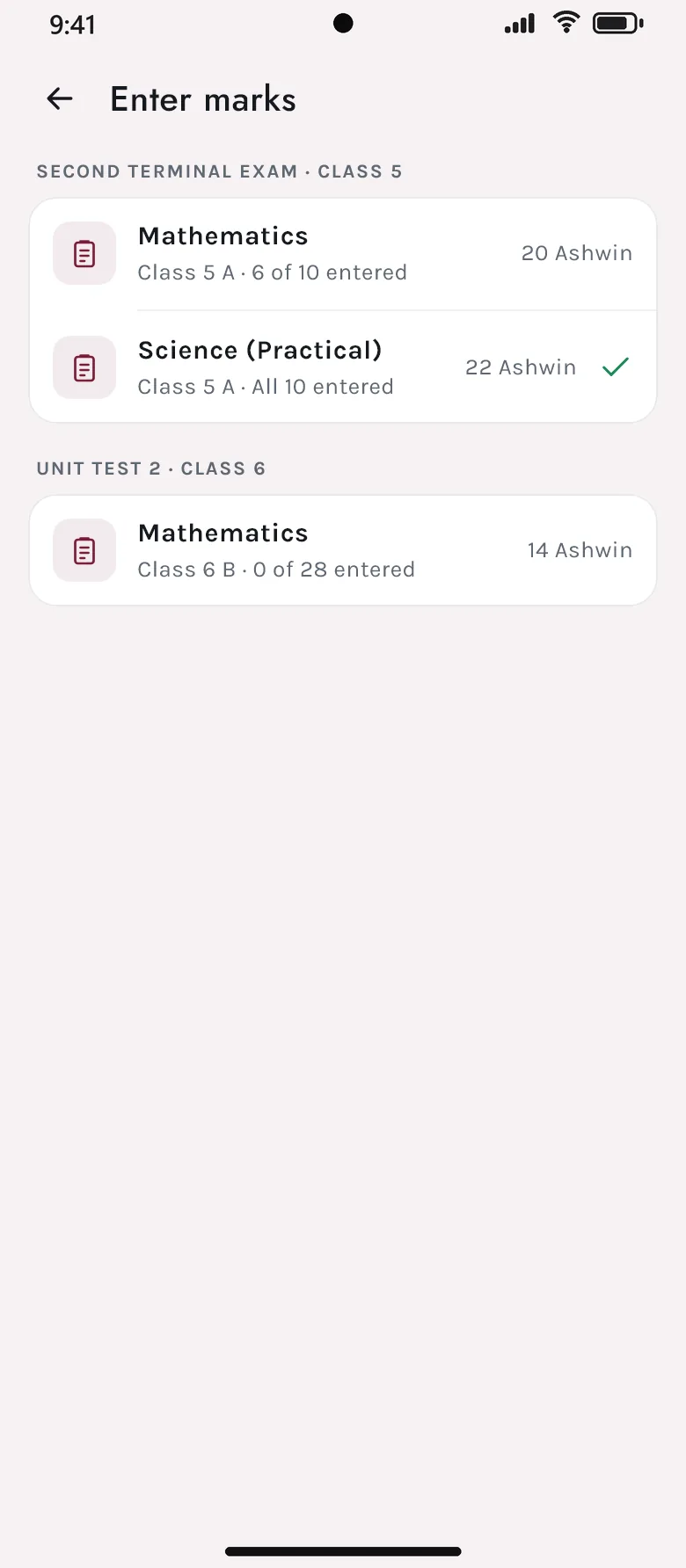
Marks
Marks for their own papers, and written answers from online tests to mark.
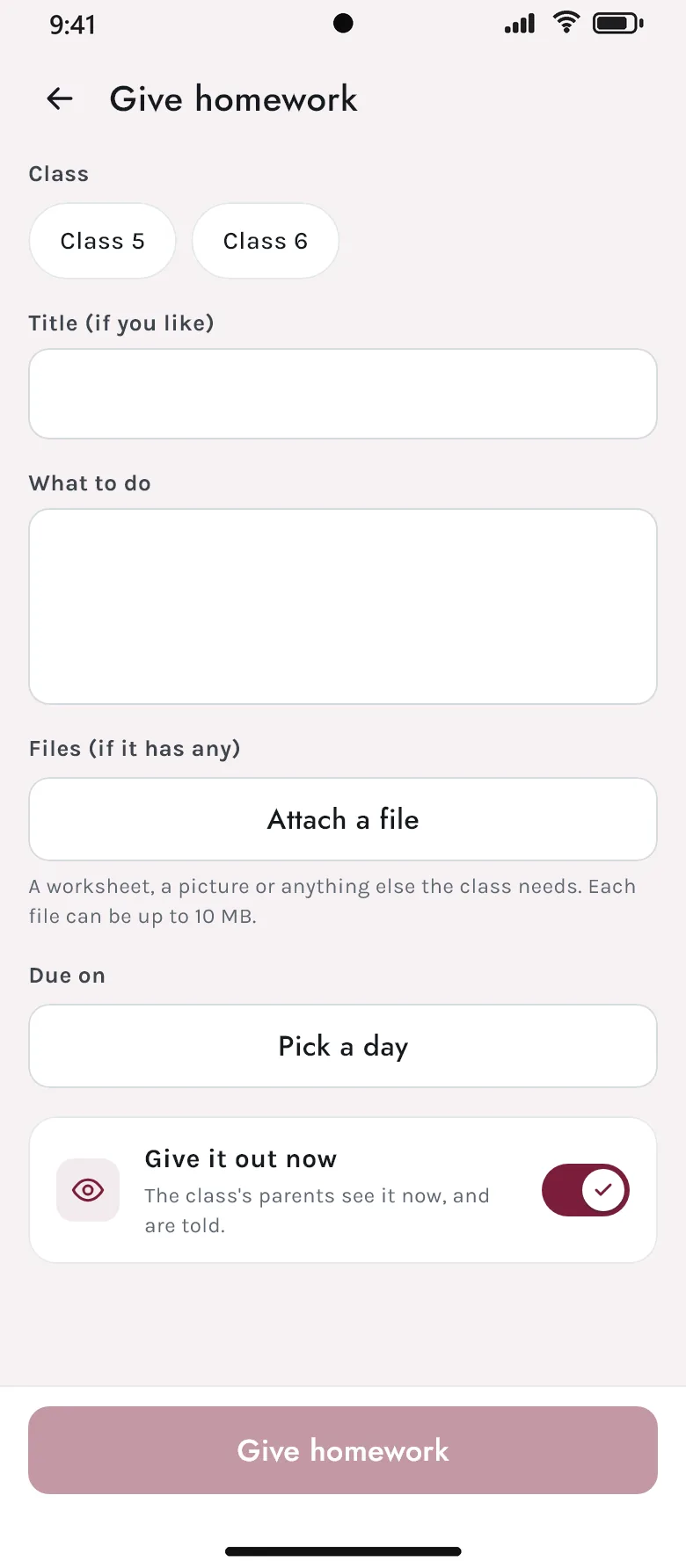
Homework and materials
Homework, assignments and learning materials given out with their files.
Progress reports
Remarks written for the class, and sent to families when ready.
Merit cards
Given in the moment, with a word on why.
Activities
Members and attendance for the activities they run.
Gate passes
Passes asked for, and the day’s comings and goings.
Leave and attendance
Leave asked for, their own attendance, and requests to approve.
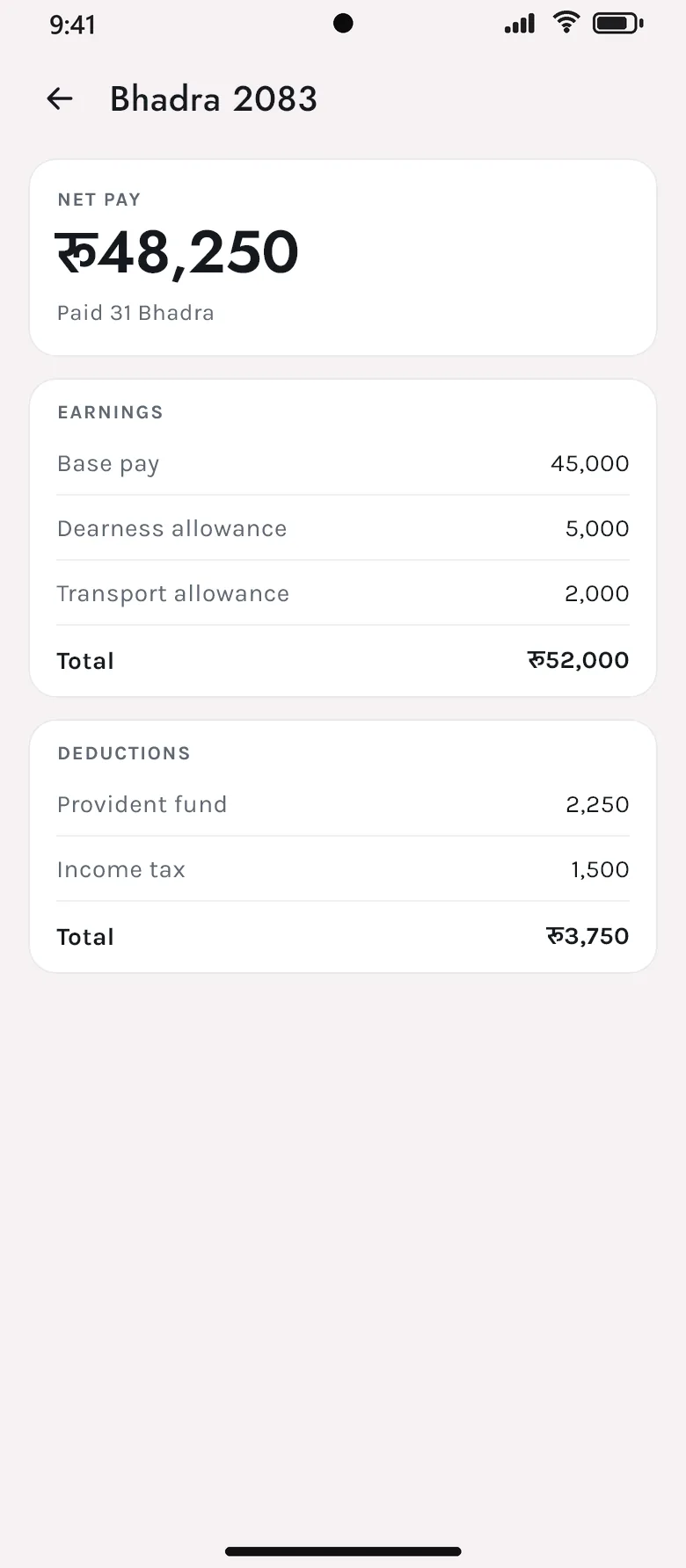
Payslips
Every month’s payslip, earnings and deductions.
Montessori
Each child’s activities recorded with a note.
Feedback
Families’ conversations answered from the phone.
Your school’s app
Your school’s name, crest and colours
Every school on Akshara gets the same app, but each family sees their own school in it — its crest at the top, its colour on every button, its name on the sign-in screen.
Safe on a phone
Easy to open for the right person — and only for them
Opens with a fingerprint or face
After time away the app asks for the fingerprint, face or phone PIN. The school decides for whom, and after how many minutes.
Every phone accounted for
Each person sees the phones signed in to their account, and the office can sign a lost phone out at once.
Sign-in that fits
A password, or a code emailed instead — and two-step sign-in where the school asks for it.
Books stay in the library
Digital library books are read-only unless the school allows saving, with the reader’s name across each page.
No punching from a phone
Staff attendance comes from the school’s devices, never from wherever a phone happens to be.
Getting started
Three steps for a family
- The school switches the app onand decides whether parents, teachers or both use it.
- The family gets a sign-infrom the school, the same one they use on the website.
- They find the school by its codeand sign in — the app takes on the school’s name, crest and colours.
See the app with your own school’s crest
We will show the app as your parents and teachers would see it — your name, your colours, your classes.